Procedure on how to solve FreeBSD boot up problem with the error message:
Loading configuration files.
/etc/rc.conf:51 Syntax error: Unterminated quoted string
Enter full pathname of Shell or RETURN for /bin/sh:
This error is normally encountered if there is a misplaced or missing double quote in the configuration file of the FreeBSD installation.
Sample invalid rc.conf file:
usbd_enable="YES
dbus_enable="YES"
compat5x_enable="YES"
Note that there is a missing double quote in the example above. This error may also be triggered by a misplaced or unnecessary double quote in the configuration file.
To fix this problem:
1. (Optional) Reboot your FreeBSD and select the login option:
4. Boot FreeBSD in single user mode
This can by done by pressing the number 4 upon boot up.
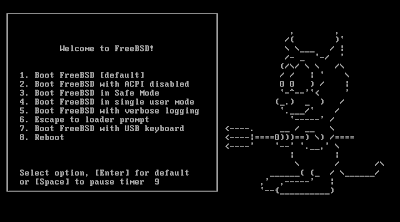
2. Press ENTER after the error message:
Loading configuration files.
/etc/rc.conf:51 Syntax error: Unterminated quoted string Enter full pathname of Shell or RETURN for /bin/sh:
3. Type mount -a -t ufs then press enter.
The argument following the -t is used to indicate the file system type. The type ufs is the default. The -t option can be used to indicate that the actions should only be taken on file systems of the specified type.
- or -Loading configuration files.
/etc/rc.conf:51 Syntax error: Unterminated quoted string
Enter full pathname of Shell or RETURN for /bin/sh:
This error is normally encountered if there is a misplaced or missing double quote in the configuration file of the FreeBSD installation.
Sample invalid rc.conf file:
usbd_enable="YES
dbus_enable="YES"
compat5x_enable="YES"
Note that there is a missing double quote in the example above. This error may also be triggered by a misplaced or unnecessary double quote in the configuration file.
To fix this problem:
1. (Optional) Reboot your FreeBSD and select the login option:
4. Boot FreeBSD in single user mode
This can by done by pressing the number 4 upon boot up.

2. Press ENTER after the error message:
Loading configuration files.
/etc/rc.conf:51 Syntax error: Unterminated quoted string Enter full pathname of Shell or RETURN for /bin/sh:
3. Type mount -a -t ufs then press enter.
The argument following the -t is used to indicate the file system type. The type ufs is the default. The -t option can be used to indicate that the actions should only be taken on file systems of the specified type.
Type mount -a then press enter.
This will mount all the file systems described in fstab.
3. Open the configuration file by typing:
/usr/bin/ee /etc/rc.conf
You may also use your preferred editor like vi, pico, etc. by replacing ee. (/usr/bin/vi /etc/rc.conf, /usr/bin/pico /etc/rc.conf)
4. Modify rc.conf and ensure that there is no missing or misplaced characters.
5. Press ESC to exit editor.
6. Save changes.
7. Reboot by using the command:
shutdown -r now
Good Luck!


14 comments:
This blog saved my neck! I am a total noob, poking around in my rc.conf file, trying to setup my wireless so it will work. Next thing I know - I can't even boot up! Then in one quick Google search I find this perfect solution. Osiris Whiz, you are as a God to me.
Now if you could tell me why I can no longer access the packages collection for 7.0 RC1 through sysinstall, and why I can't get my wireless card to work, even though it associates with the ap, I would be the happiest noob in Noobville! Thanks!
Can you give me more information about the things that you did and what you are trying to do? I'll start a new post regarding your question. Just check the entry "BSD 7 question" in cyberjotter.blogspot.com and add your info on that post.
Thanks!
Thanks a lot!!! it worke like charm!!!
Glad to help.
thank you for this guide, it helped me...
Thanks a lot.....
It helped me so much...
thank you thank you thank you!
if editor cant save file use fcsk command 2 run disk check? after that u can edit file...
Nice dispatch and this enter helped me alot in my college assignement. Gratefulness you for your information.
Well I assent to but I contemplate the brief should prepare more info then it has.
Good fill someone in on and this post helped me alot in my college assignement. Gratefulness you on your information.
Sorry for my bad english. Thank you so much for your good post. Your post helped me in my college assignment, If you can provide me more details please email me.
Despues de casi 2 años. La ayuda aun es valida. Muchas Gracias
Hey bro, tanks for this tip, im a noob whith free BSD (i'm unsing the 7.2 ver to host a metin2 server =>), so, i has intalled apache22, and i wrote apache_enable=YES" in the rc.conf file, then i got a problem, and your post has solved it, tanks again, from Mexico Bro. Sorry by my english, i known that is bad. C ya
Post a Comment